

Wix Integration
The Gamopanda Wix app adds three Wix Flow actions, two Wix Triggers and a Embedded Script to your store. Automation actions let you trigger streak and challenge progress from any Wix automation triggers — order paid, order fulfilled, checkout completed, loyalty event — without writing backend code. The Embedded script loads the Gamopanda loyalty widget directly into your storefront, surfacing progress and rewards to logged-in customers in real time.
Installation
Install the Gamopanda app from the Wix App Store. Once installed, the triggers such as order_paid and order_fulfilled and actions such as Execute Streak, Execute Challenge, and Update Reward Log are immediately available in Wix Automations and Gamopanda configuration page is available under Manager Apps section.
Floating widget
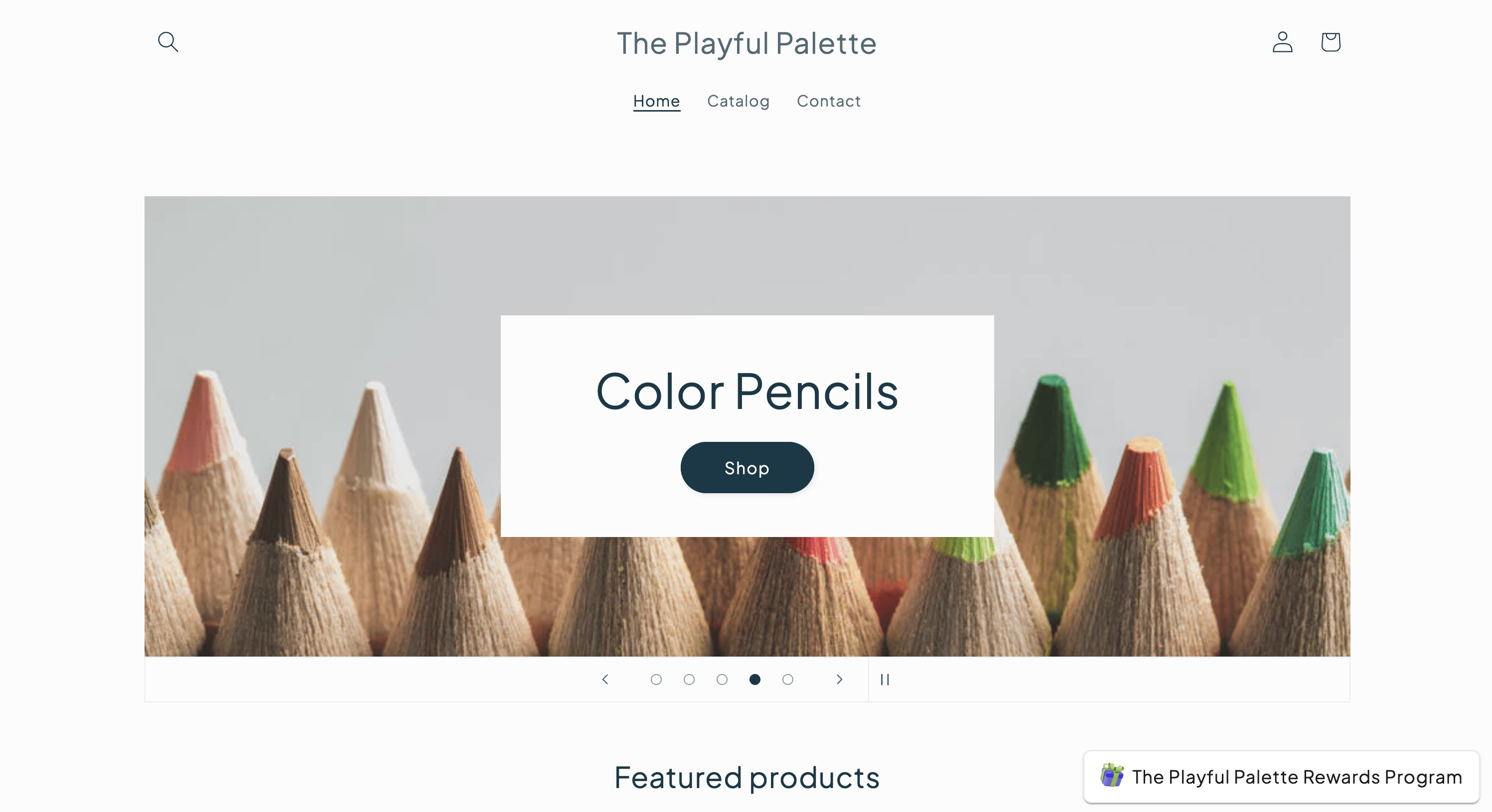
The Gamopanda Embedded Script embeds the loyalty widget into your storefront. It handles customer authentication automatically and renders the floating widget on every page where it is active.
Adding the Gamopanda Embedded Script requires fields such as Account Id, Template Id, Theme Id, and Floating Widget Id to be configured.
- In your Wix admin, go to Apps → Gamopanda Configuration.
- Configure the screen (see Settings below).
- Save your configuration and the floating widget will be visible on the website for your customers to see.
Embedded Script block configuration
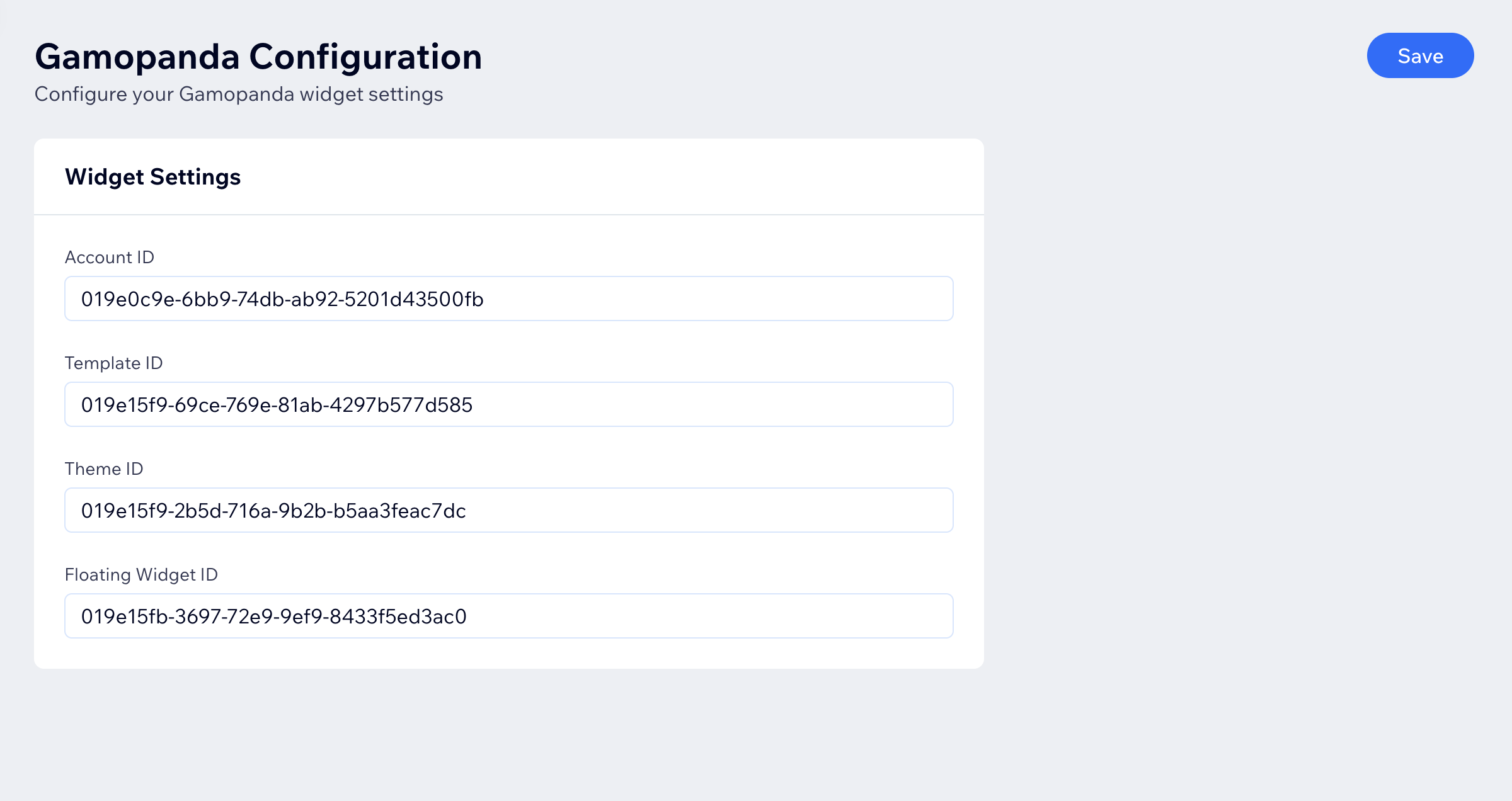
Widget settings
Configure the widget appearance and behaviour by entering the IDs from your Gamopanda dashboard:
| Setting | Description |
|---|---|
| Account Id | The account Id which needs to be integrated. |
| Template Id | Controls the widget's copy and localisation. Find this in Gamopanda → Templates. See Template for field details. |
| Theme Id | Controls the widget's colours and typography. Find this in Gamopanda → Themes. See Theme for field details. |
| Floating Widget Id | Controls the launcher button style and position. Find this in Gamopanda → Floating Widgets. See Floating Widget for field details. |
All four fields are compulsory.
How authentication works
The embedded script detects whether a customer is logged in and handles authentication accordingly:
Logged-in customers
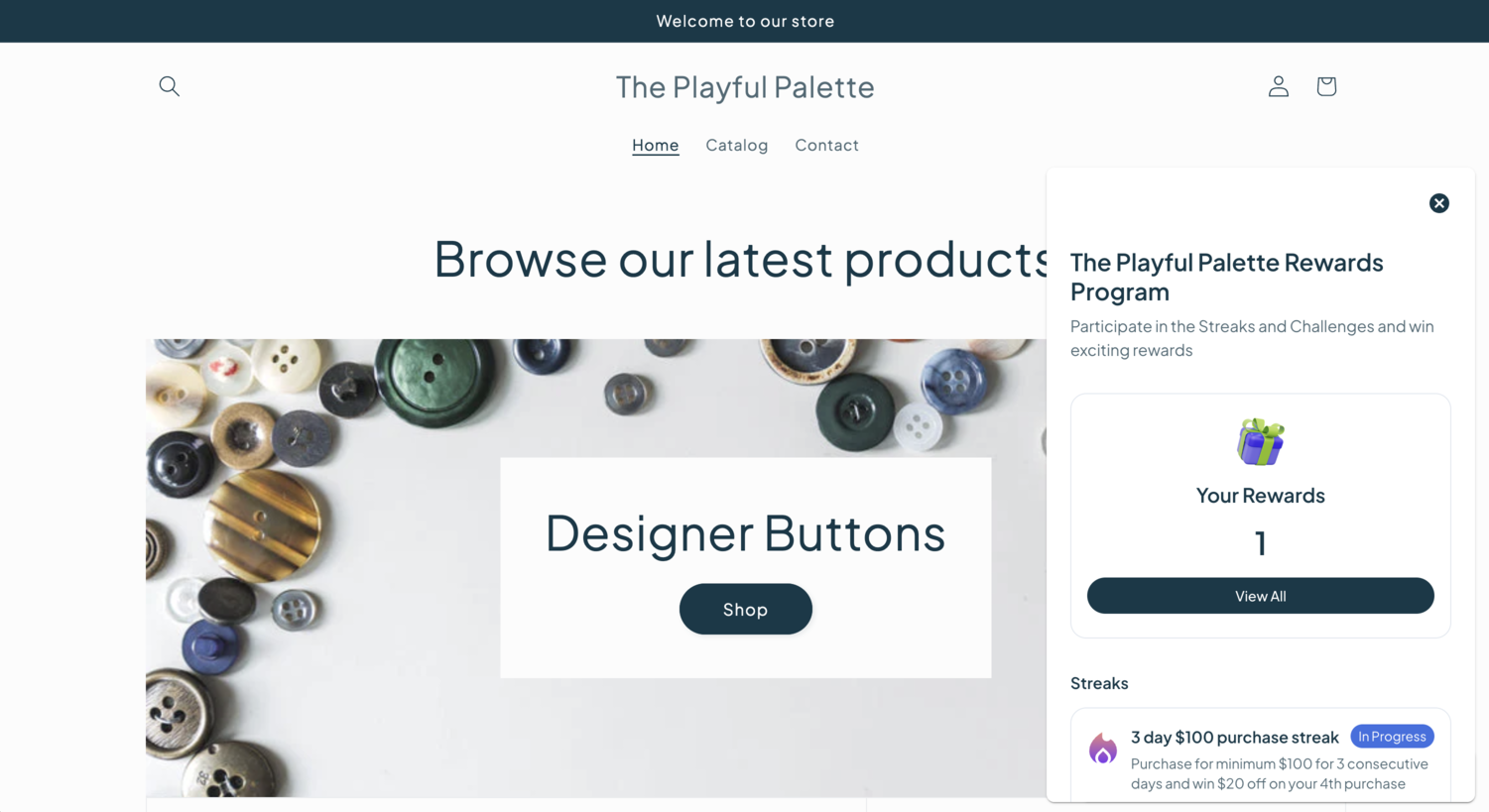
The embedded script calls the Gamopanda API server-side and fetches the user accessToken. The widget is initialised with the accessToken, giving the customer full access to their progress, milestones, and rewards.
Guest visitors
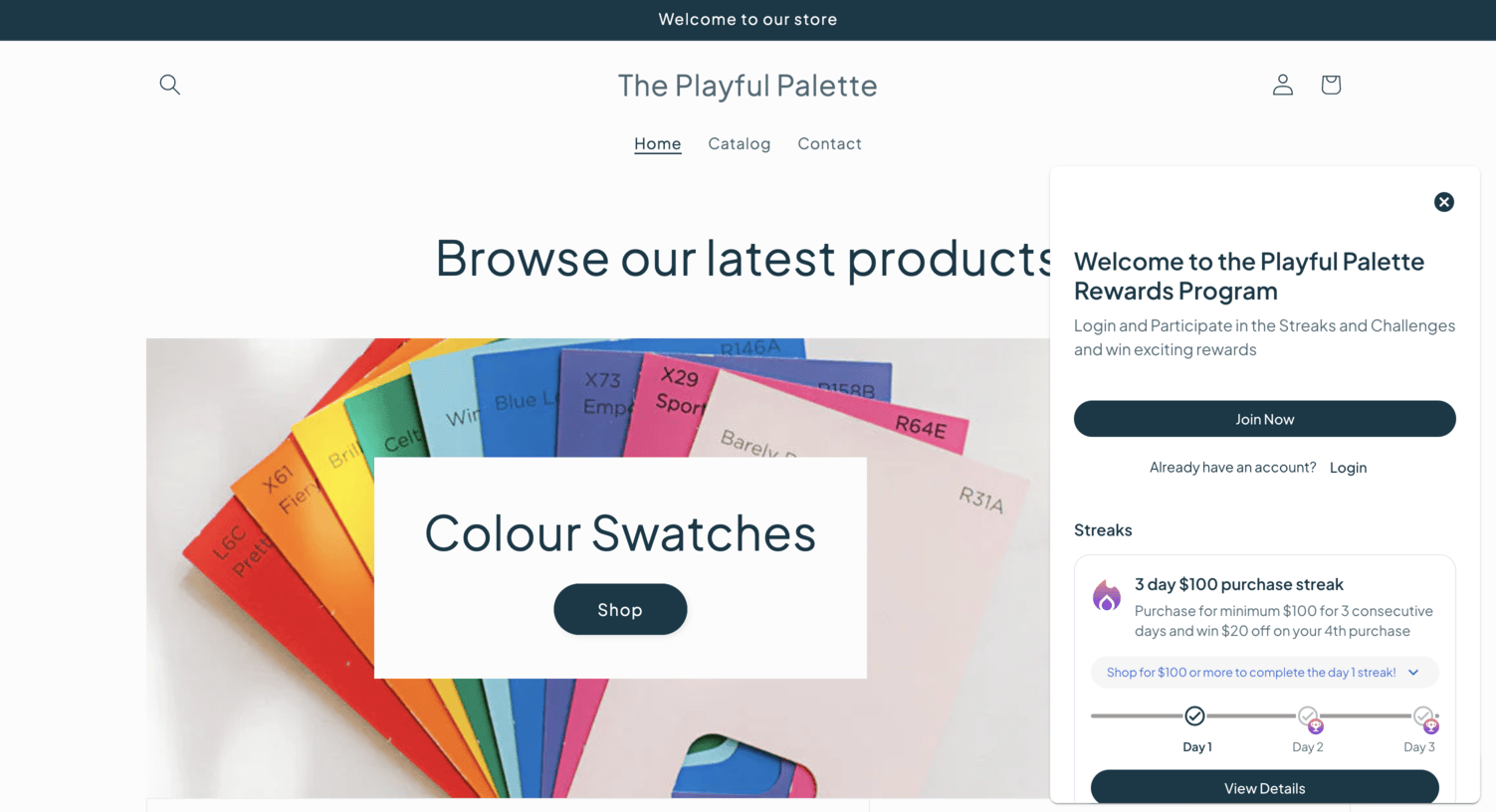
If no customer is logged in, the widget is initialised without an accessToken. The widget renders in guest mode — public content (e.g. how the programme works, available streaks and challenges) is visible, but personal progress is not shown until the customer logs in.
The locale of the storefront (document.documentElement.lang) is passed automatically — no extra configuration needed for multilingual stores.
Rendered widget
Floating widget on storefront
End User Display on storefront (logged-in customer)
End User Display on storefront (guest visitor)
Automation triggers
Order Paid
One can listen to order paid event and calls execute streak, execute challenge or execute mission actions to start tracking User Progress. This is usefull for tracking purchase related activities like spend, order count, items purchase or any other activities which can be tracked based on the order paid event.
Order Fulfilled
One can listen to order fulfilled event and calls execute streak, execute challenge or execute mission actions to start tracking User Progress. This is usefull for tracking purchase related activities like spend, order count, items purchase or any other activities which can be tracked based on the order fulfilled event.
Automation actions
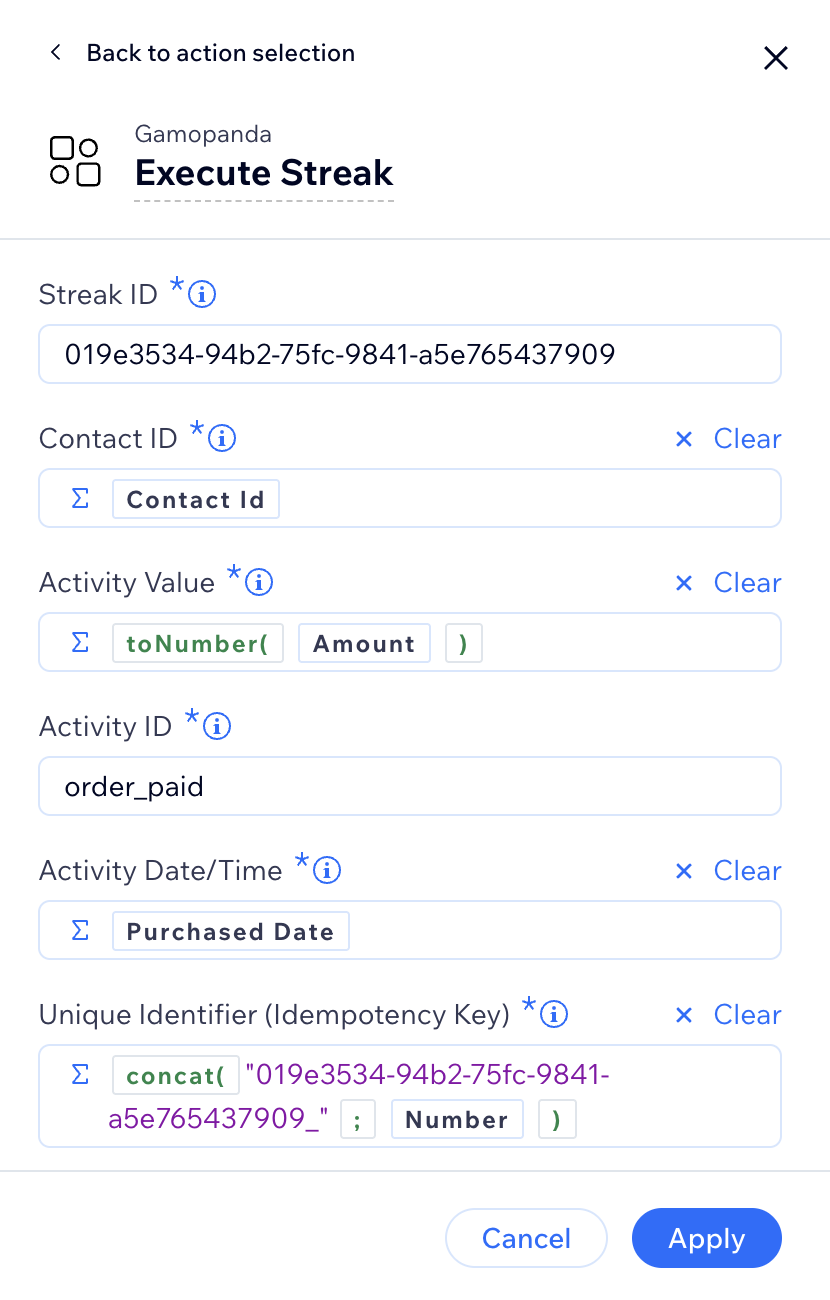
Execute Streak
Logs a customer activity event that contributes to a streak. Use this action in any Flow that tracks repeating behaviour — daily purchases, weekly visits, monthly workouts.
Internally, this action calls POST /schema/streak_log/record on your customer's behalf. See Streak Logs for field details.
Action fields
| Field | Required | Description |
|---|---|---|
| Contact Id | ✅ | The Wix customer performing the activity. Resolved to a Gamopanda member automatically. |
| Streak Id | ✅ | The ID of the Gamopanda streak to log against. Found in your Gamopanda dashboard. |
| Activity Id | ✅ | The type of activity — e.g. order_paid, visited_store. |
| Activity Value | ✅ | The numeric value of the activity. Use 1 for count streaks. For sum streaks, pass the relevant value (e.g. order total). |
| Activity At | ✅ | The datetime the activity occurred. Used to determine the aggregation period. |
| Unique Identifier | ✅ | The idempotency key so that duplicate requests are rejected. |
Action output
The action returns the created StreakLog record along with streakProgress, achievedMilestone(if any), nextMilestone(if any), taskProgress for the current period and achievedMilestoneRewardLog. You can use these output fields in downstream Flow steps. See Streak Logs for field details.
If you are managing coupons on your own, use the achievedMilestoneRewardLog.id output to chain directly into the Update Reward Log action — no extra lookup needed.
Execute Streak Flow Action
Execute Challenge
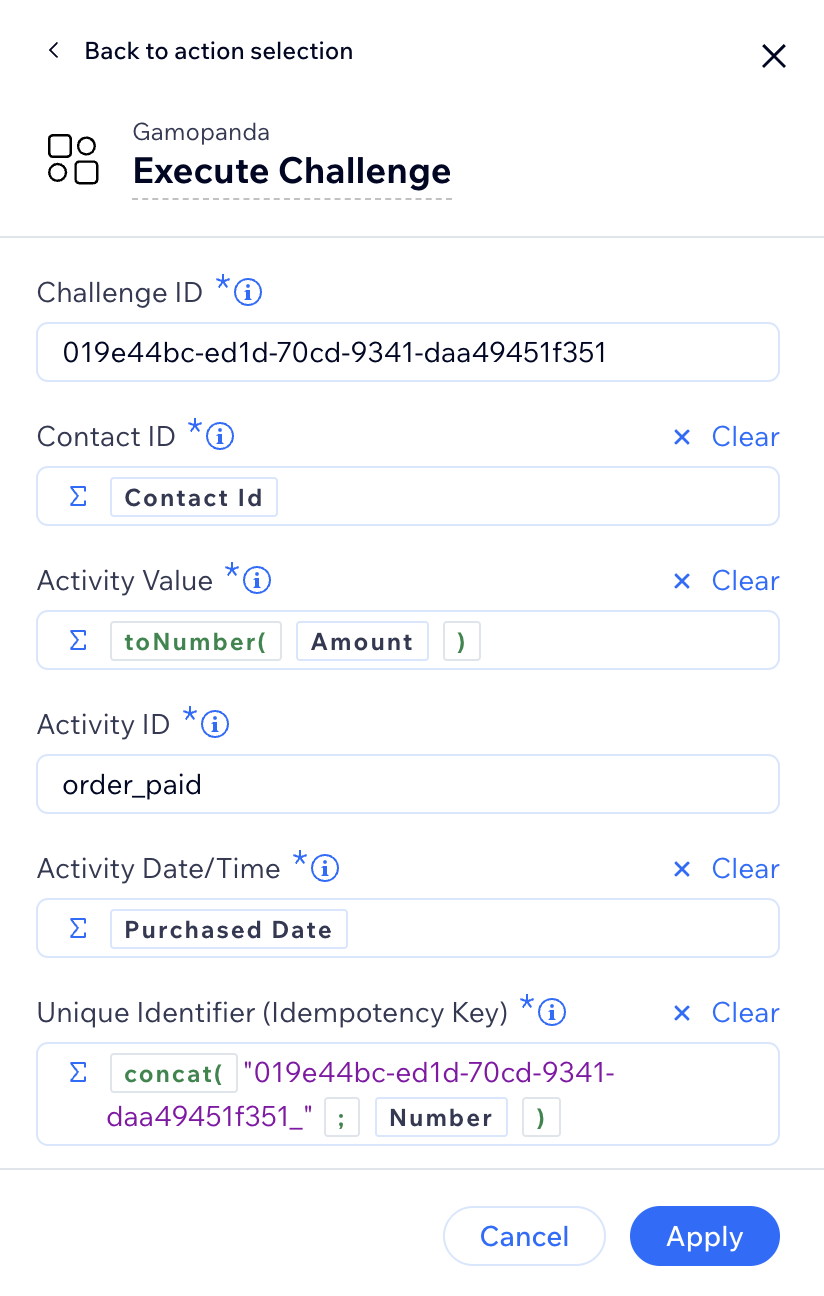
Logs a customer activity event that contributes to a challenge. Use this action to track cumulative progress toward a spend, visit, or activity target — for example, a monthly $500 spend challenge.
Internally, this action calls POST /schema/challenge_log/record on your customer's behalf. See Challenge Logs for field details.
Action fields
| Field | Required | Description |
|---|---|---|
| Contact Id | ✅ | The Wix customer performing the activity. Resolved to a Gamopanda member automatically. |
| Challenge Id | ✅ | The ID of the Gamopanda challenge to log against. Found in your Gamopanda dashboard. |
| Activity Id | ✅ | The type of activity — e.g. order_paid, order_created. |
| Activity Value | ✅ | The numeric value of the activity. Use 0 for count challenges. For sum challenges, pass the spend amount, step count, or other measurable value. |
| Activity At | ✅ | The datetime the activity occurred. |
| Unique Identifier | ✅ | The idempotency key so that duplicate requests are rejected. |
Action output
The action returns the created ChallengeLog record along with challengeProgress, achievedMilestone(if any), nextMilestone(if any) for the current period and achievedMilestoneRewardLog. You can use these output fields in downstream Flow steps. See Challenge Logs for field details.
If you are managing coupons on your own, use the achievedMilestoneRewardLog.id output to chain directly into the Update Reward Log action — no extra lookup needed.
Execute Challenge Flow Action
Execute Mission
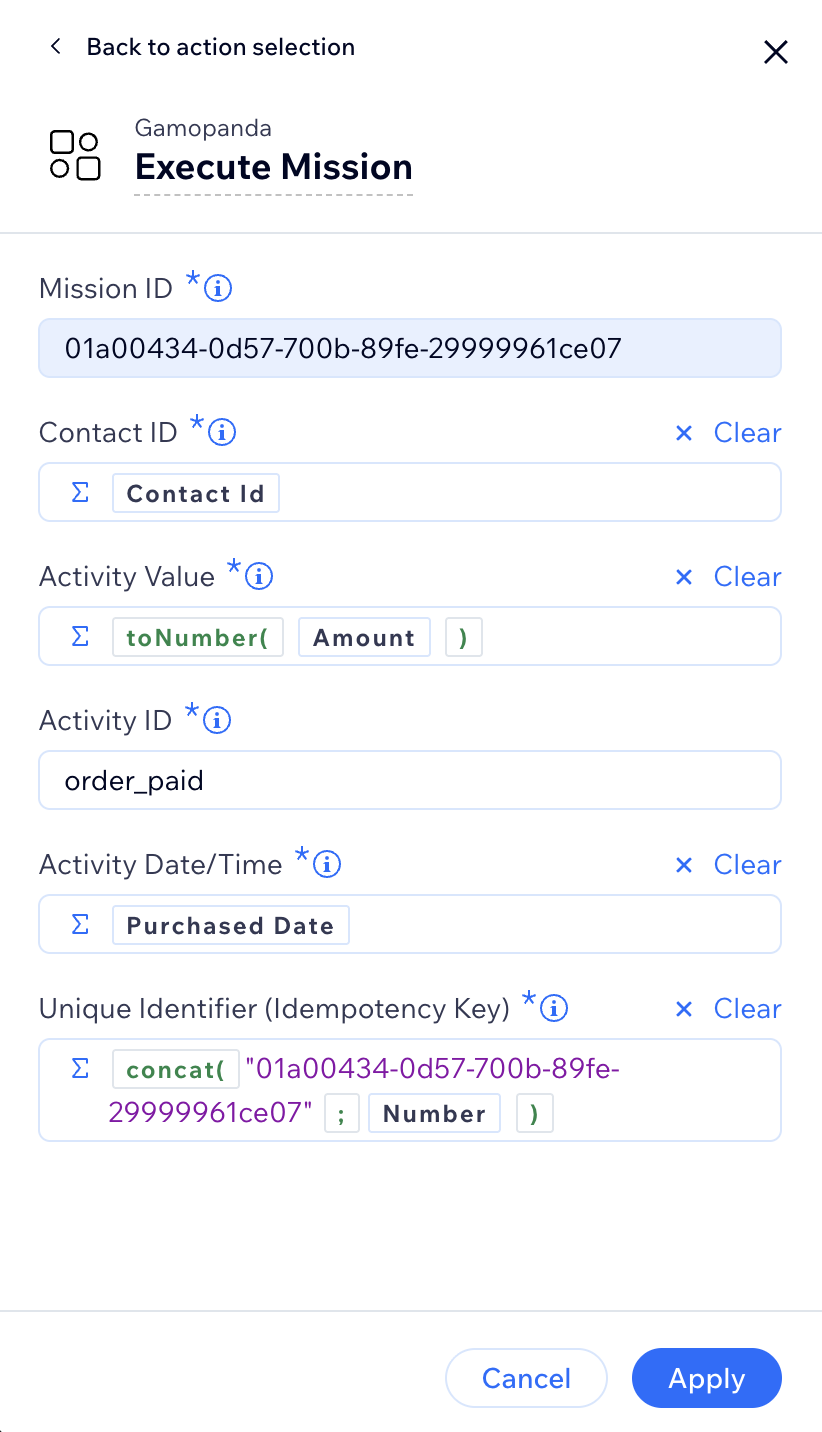
Logs a customer activity event that contributes to a mission. Use this action in any Flow that tracks repeating behaviour — daily purchases, weekly visits, monthly workouts.
Internally, this action calls POST /schema/mission_log/record on your customer's behalf. See Mission Logs for field details.
Action fields
| Field | Required | Description |
|---|---|---|
| Customer | ✅ | The Wix customer performing the activity. Resolved to a Gamopanda member automatically. |
| Mission Id | ✅ | The ID of the Gamopanda mission to log against. Found in your Gamopanda dashboard. |
| Activity Id | ✅ | The type of activity — e.g. order_paid, visited_store. |
| Activity Value | ✅ | The numeric value of the activity. Use 1 for count missions. For sum missions, pass the relevant value (e.g. order total). |
| Activity At | ✅ | The datetime the activity occurred. Used to determine the aggregation period. |
| Unique Identifier | ✅ | The idempotency key so that duplicate requests are rejected. |
Action output
The action returns the created MissionLog record along with missionProgress, achievedMilestone(if any), taskProgress for the current period and achievedMilestoneRewardLog. You can use these output fields in downstream Flow steps. See Mission Logs for field details.
If you are managing coupons on your own, use the achievedMilestoneRewardLog.id output to chain directly into the Update Reward Log action — no extra lookup needed.
Execute mission Flow Action
Update Reward Log
Gamopanda comes with rewards and coupons management.
If you have set handleCoupon to true on the parent Reward configuration, you don't need this action.
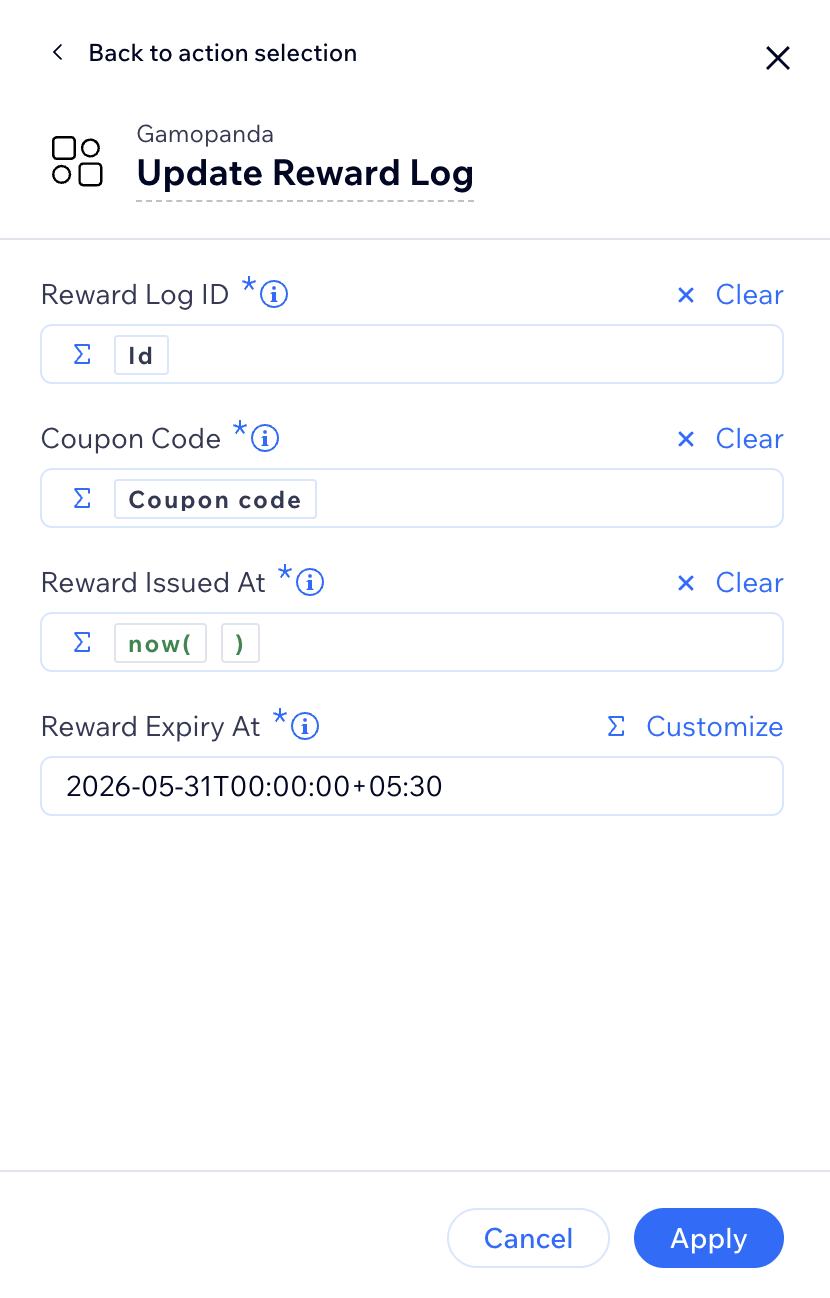
Stamps a coupon code and issuance timestamps onto a Reward Log. Use this action immediately after Execute Streak or Execute Challenge detects a milestone crossing — it fulfils the reward by writing the coupon code back to the Reward Log record.
Action fields
| Field | Required | Description |
|---|---|---|
| Reward Log Id | ✅ | The ID of the Reward Log to update. Use the achievedMilestoneRewardLog.id output from Execute Streak or Execute Challenge. |
| Coupon Code | ✅ | The discount code issued to the customer. Generate this via Wix's built-in Add a Coupon action before this step. |
| Reward Issued At | ✅ | The datetime the reward was issued. |
| Reward Expiry At | ✅ | The datetime the reward expires. |
Typical Flow pattern
Code
Update Milestone Reward Log with Coupon Flow Action
| Resource | Description |
|---|---|
| Streak | Configure the streaks your Flow actions log against |
| Challenge | Configure the challenges your Flow actions log against |
| Milestone | Reward checkpoints that trigger the reward log |
| Reward Log | The reward record updated by Update Milestone Reward Log with Coupon |
| Template | Widget copy and localisation settings |
| Theme | Widget visual styling |
| Floating Widget | Launcher button configuration |